How to Auto-Apply to Workday Jobs With Better Controls
By Scout Editorial Team · Published June 10, 2026 · Updated August 21, 2026
To auto-apply to Workday jobs without losing control, prepare one accurate source profile, use an ATS-friendly resume, define answers that may be reused, and require review for anything sensitive or uncertain. A tool should record the employer, role, date, answers, and resume version after submission.
Workday applications vary by employer. Automation that works on one form can encounter different required fields, account flows, or screening questions on another. The quality of the exception process matters as much as the speed.
Why Workday applications feel repetitive
Employers configure their own career sites and application questions. A candidate may need to create separate accounts, upload the same resume again, correct parsed work history, and answer employer-specific questions.
Common sources of friction include:
- Account creation and email verification.
- Resume parsing errors.
- Repeated employment and education fields.
- Different required-document rules.
- Work-authorization questions.
- Employer-specific screening questions.
- Optional demographic and self-identification forms.
The correct answer is not to guess faster. It is to create a reliable source profile and a clear path for exceptions.
Workday application help for common problems
If a Workday application stalls or repeats incorrect information, fix the source of the problem before submitting more forms.
| Problem | Likely cause | Safer next step |
|---|---|---|
| Your profile is not recognized at another employer | Employer career sites can use separate account and profile flows | Confirm the employer site and create or update the correct profile |
| Work history parses incorrectly | The resume layout or date format was misread | Correct the fields and simplify the source document before reuse |
| A required answer is missing | The employer added a custom screening question | Pause and get an approved answer rather than inferring one |
| You cannot confirm submission | The form stopped before its final state or confirmation was missed | Check the employer portal and email before trying again |
| The same role appears through another board | A cross-posted link may lead to the same employer requisition | Compare the requisition ID and application history before submitting |
Do not repeatedly click submit after an uncertain result. A confirmation email, employer-portal status, or saved receipt is stronger evidence than returning to the final form page.
Prepare the source profile first
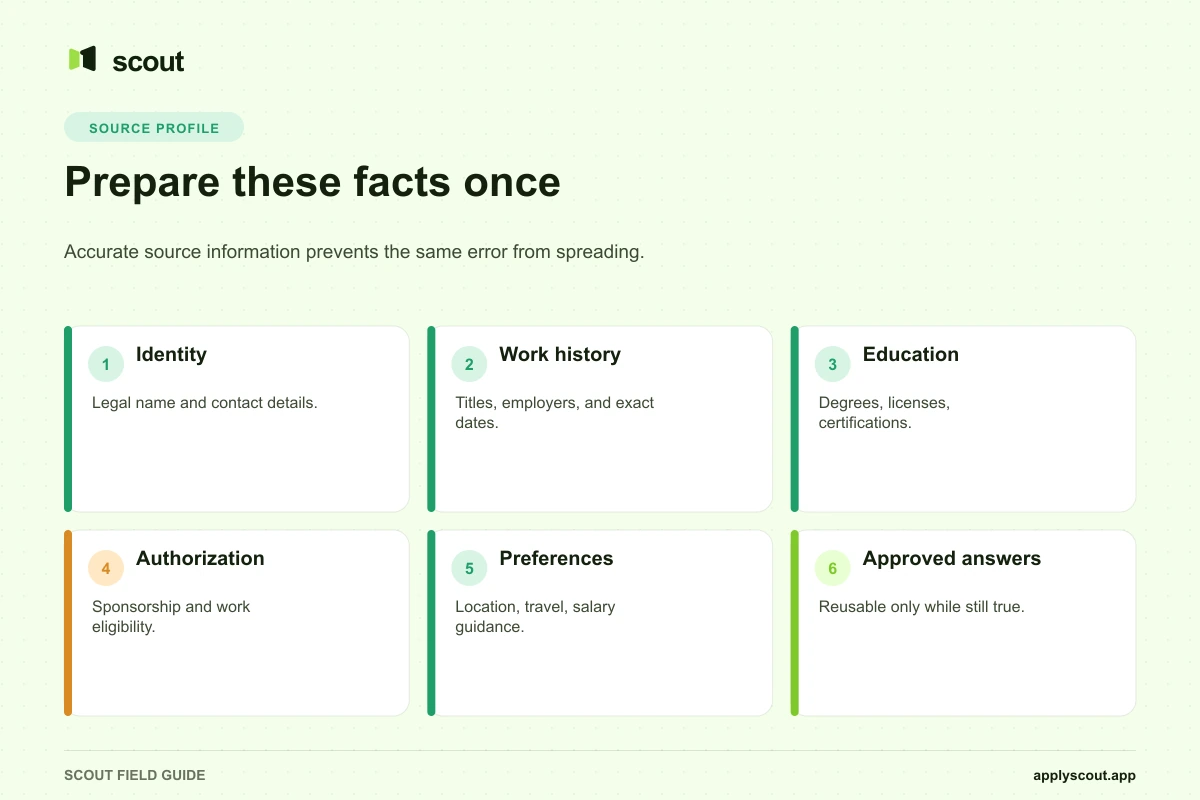
Store:
- Legal name and contact details.
- Complete employment history with accurate dates.
- Education, licenses, and certifications.
- Work authorization and sponsorship requirements.
- Location and relocation preferences.
- Approved salary guidance.
- Travel availability.
- Links and portfolios.
- Answers to repeated questions that remain true.
Keep demographic and disability self-identification choices separate from professional qualifications. Those questions may be voluntary in the United States, and a service should preserve the candidate’s chosen response rather than infer it.
Use a resume that parses cleanly
A simple document is easier for many application systems to interpret:
- Use a single column.
- Prefer standard headings such as Experience, Education, and Skills.
- Avoid placing essential information only in headers, footers, graphics, or text boxes.
- Use recognizable date formats.
- Check the parsed fields before treating the profile as correct.
An attractive resume and a parseable resume are not mutually exclusive. The goal is to preserve hierarchy without depending on layout elements the parser may ignore.
Autofill versus managed submission
Autofill inserts saved values into fields while you remain in the application. It can reduce typing but normally leaves review, custom questions, and final submission to you.
Managed submission handles more of the workflow on your behalf. Depending on the service and the employer’s form, that may include job selection, document preparation, account steps, repeated answers, exception handling, final submission, and tracking.
Ask what “Workday support” means before purchasing. Coverage may differ by employer configuration, geography, authentication, or question type.
A controlled Workday workflow
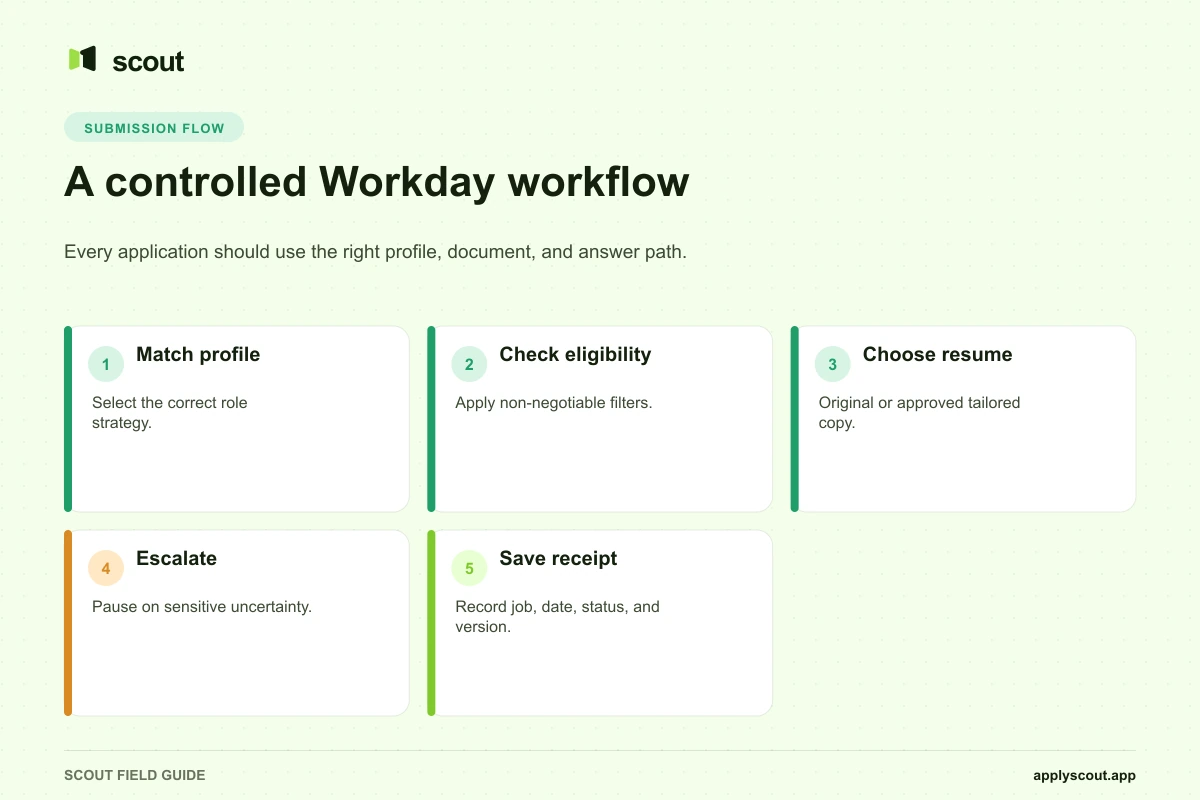
1. Match the job to the correct profile
If you pursue more than one role family, select the relevant job profile and resume strategy. Do not send a product-management resume to a program-management role simply because both contain “manager.”
2. Apply hard eligibility filters
Check location, work arrangement, work authorization, clearance, required licenses, and seniority before spending time on tailoring. The wrong-fit application guide explains how to separate hard eligibility rules from preference ranking.
3. Choose the resume behavior
Use an approved original resume when consistency matters. Allow a tailored copy when the service can preserve the original, show the version, and avoid unsupported claims.
4. Escalate uncertain questions
A system should pause for questions it cannot answer from approved information. It should never infer sponsorship, salary, disability, criminal history, clearance, or willingness to relocate.
5. Save the receipt
Record the company, title, requisition ID, source URL, date, status, resume version, and any available answer evidence. This helps with recruiter follow-up and duplicate prevention.
How Scout handles Workday-oriented searches
Scout’s Workday page explains the supported workflow. Users can create job profiles for different role and location strategies, choose how resumes are handled, and track applications in one dashboard.
The AI Assistant offers a lower-cost automated lane. The Human Assistant adds a dedicated person in WhatsApp and detailed evidence for important form answers. Use the Human lane when your application questions require more judgment.
Because employer forms and authentication flows change, no service should promise that every Workday application will complete without review or exception handling.
Is Workday auto-apply risk-free?
No. Risks include incorrect parsed data, duplicate applications, unsupported resume changes, wrong answers, expired listings, and conflicts with an employer or platform’s terms.
Reduce those risks by:
- Starting with approval mode.
- Keeping job profiles narrow.
- Preserving the original resume.
- Reviewing saved answers.
- Requiring escalation for sensitive questions.
- Monitoring confirmation emails.
- Pausing immediately when errors appear.
Bottom line
Workday automation is valuable when it removes repeated data entry and maintains a reliable record. It is harmful when it turns employer-specific forms into an unchecked bulk-submission process.
Prepare accurate source information once, make exceptions visible, and judge the service by application quality and evidence—not by how quickly it can click through pages.
Sources and methodology
This article was updated on August 21, 2026 to add Workday application troubleshooting and stronger duplicate and wrong-fit controls. Guidance on voluntary self-identification was checked against the U.S. Equal Employment Opportunity Commission’s discussion of applicant demographic data. Employer configurations and legal requirements vary by jurisdiction.